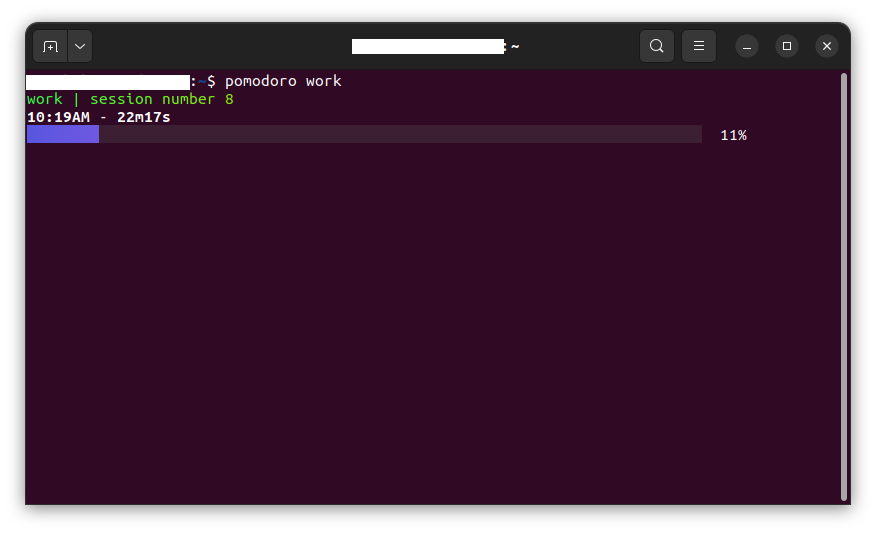
I’ve been using the pomodoro technique for quite a while now, especially when I’m going through my programming-related tasks. In my experience, it can be quite effective in helping you concentrate on your work.
Although there is no shortage of pomodoro timers online, I wanted to build my own using Bash. There is something about shell programs that I find appealing. Maybe it’s that whole sci-fi aesthetic. You can view the script here.
This is based on the work of bashbunni. I came across a video on Youtube where she shows her program and briefly goes over its code. The following are the features I’ve added to it.
- Tracking of the number of work sessions that have elapsed.
- Notification (with sound alert) when a session is over.
- Notification encouraging a longer break when four work sessions have finished.
- Ability to trigger longer breaks.
The script needs the following dependencies in order to work effectively:
timer- Used to display a progress bar, indicating the progression of the timer. The program can be installed from its git repository.lolcat- Used to add rainbow coloring to the details about the current session. This program will probably be available in your operating system’s official repositories. If it’s not, you can install it from its git repository.notify-send- Used to display notifications. Comes pre-installed on Ubuntu. It’s probably already available on other popular distributions too. If it’s not, modify the script to use an equivalent program.paplay- This utility comes with the pulseaudio sound server. If it’s not installed on your system, you can replace it with whatever sound player comes with your desktop environment.
The program accepts the following arguments:
work- Starts work session.break- Starts break session.long-break- Starts long break session.reset- Resets the work sessions count.
Let me go through the important parts of the code and explain what’s going on. This can be helpful if you’re starting out with bash scripting and/or would like modify the script to make it more to your liking.
At the beginning of the script, I’ve got an associative array called pomo_options. This is supposed to store the values for the duration of each type of session. It contains the keys work, break, and long-break. The values corresponding to these keys are the lengths of the sessions in minutes. You can modify these according to your preferences.
The first if statement checks if the file at $HOME/.config/pomodoro/pomodoro-count exists. This is where the number of work sessions that have elapsed is going to be stored. If the test evaluates to 0, which means true, the file is created and 0 is added to it to begin the count. The value is then stored in pomo_sessions for easier access. From this point onwards, whenever I refer to pomo_sessions, assume I also mean the data stored within the pomodoro-count file.
The next if statement checks if pomo_sessions is not 0, and then further checks if the result of adding 1 to it might yield a multiple of 4. This is how I ensure that upon the completion of every 4th work session, the user gets a notification message that reminds them to take a longer break. If the test returns 0, the work_message variable, which contains the message string for the notification, is updated.
The script only accepts one argument. This is going to be stored in $1, which is part of a set of special shell variables called positional parameters. These are referenced as 0$, 1$, $2, $3…$n, where 0$ is assigned the name of the script, while the rest are assigned the arguments passed to the script, according to their order.
I check if the argument is present as a key in pomo_options. If it is, the nested conditional statements test for what the argument is and then run echo, timer, notify-send, and paplay commands, passing to them the appropriate arguments.
Say the script receives work as an argument, for example. I echo the argument (which is same as the session type) along with the session number and pipe the result to lolcat, which outputs it to stdout in lovely rainbow colors. Then I run timer followed by notify-send using the logical AND operator. This way, notify-send only sends the notification if the first command is successful, but if timer is interrupted, no notification is sent. The next if condition checks if $? is equal to 0. This is another special shell variable, and it holds the exit code of the last command that was executed. If the condition is true, meaning the command exited successfully, I call the increment_sessions function, which increments pomo_sessions by 1, and run paplay to play a sound. I’m using glass.ogg, which comes by default with Ubuntu, as my sound alert. You can use whatever audio file you desire. The else case is pretty similar, so I don't think there is any need to go over that.
The last if statement is responsible for calling reset_sessions_count when reset is passed to the script. The function, as its name suggests, overwrites pomo_sessions with 0.
That’s it! That was a pretty simple and concise script. But owing to its loose structure and somewhat confusing syntax, Bash can be difficult to wrap your head around. I hope this post helped you understand it a little better and encouraged you to create your own scripts.